 Cadenza
Not a dashboard
Twelve windows. One keyboard.
Cadenza is not one big window with panels inside it. Every panel opens as its own native window with its own name, so you can place it, size it, put it on a second screen, or capture it on its own.

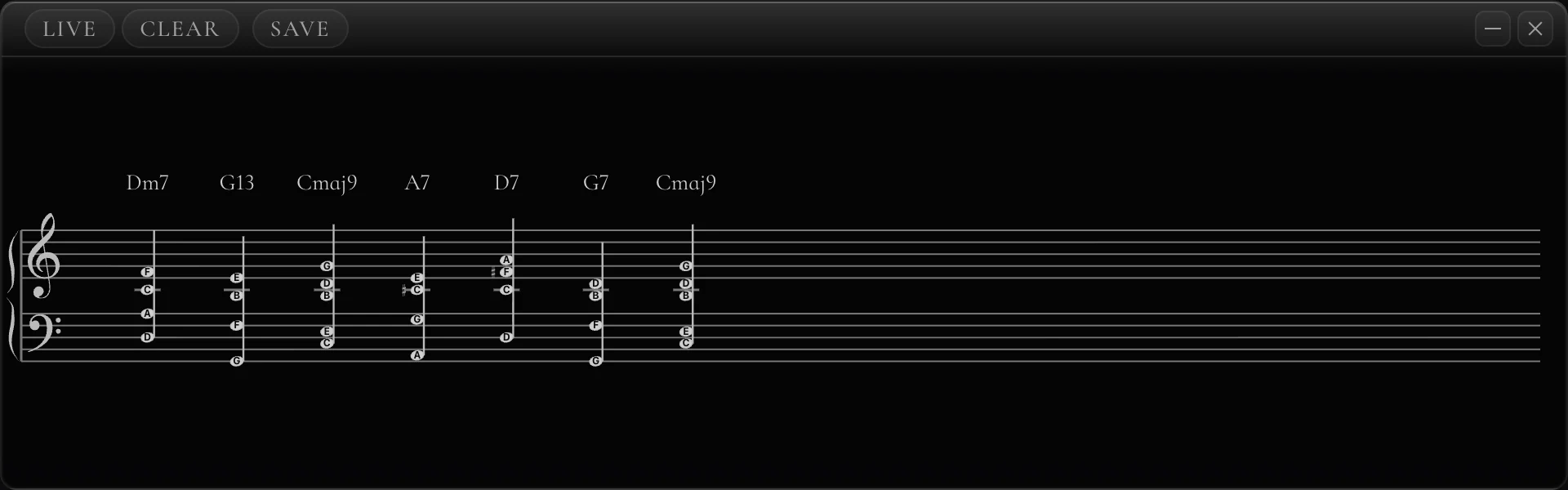


Fixed window titles, exactly as they appear in the macOS Window menu and in a capture source list. Plus Cadenza — Recorder, which is a mode rather than a panel.
One dock stays on top. Everything else goes where you want it.
- 1010 × 100, always on top — opens and closes panels, and stays visible over your DAW, your browser or your video call
- Layout presets — save an arrangement, recall it next session, switch between teaching and streaming in one click
- It owns the MIDI port itself — no loopMIDI, no bridge app — and its own browser overlays are fed by the app itself
- Positions are remembered — quit and reopen; every window comes back where you left it
- No background throttling — the panels keep drawing at full speed when the app is not the focused window, which is the whole point of putting them beside something else

Progression. Chords go in straight from your playing. Add barlines, play the whole thing back, export it as text or a Markdown table for homework.
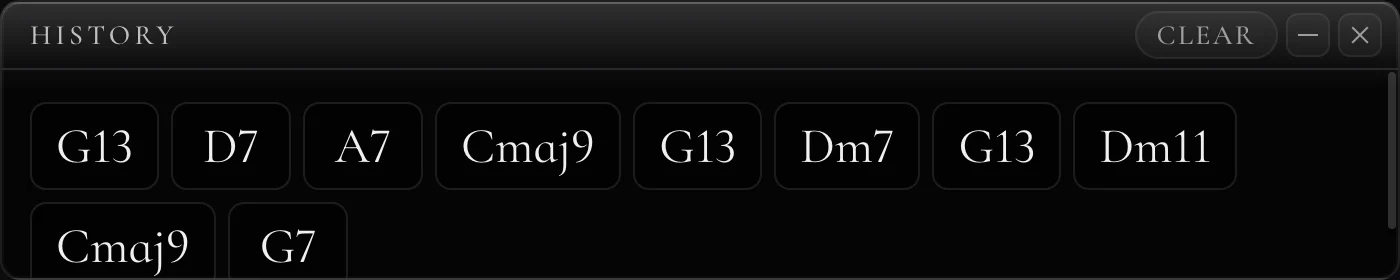
History. Everything you played, in order, with its notes. Click any chord to bring it back.
For the stream and the projector
One switch and the whole app turns to paper.
Pure black on white. No shadows, no gradients, no glass. Dark grey is the first thing a stream encoder throws away, and a projector washes it out entirely — so there is a mode with nothing grey in it. The keys stay photographic; everything around them becomes paper.

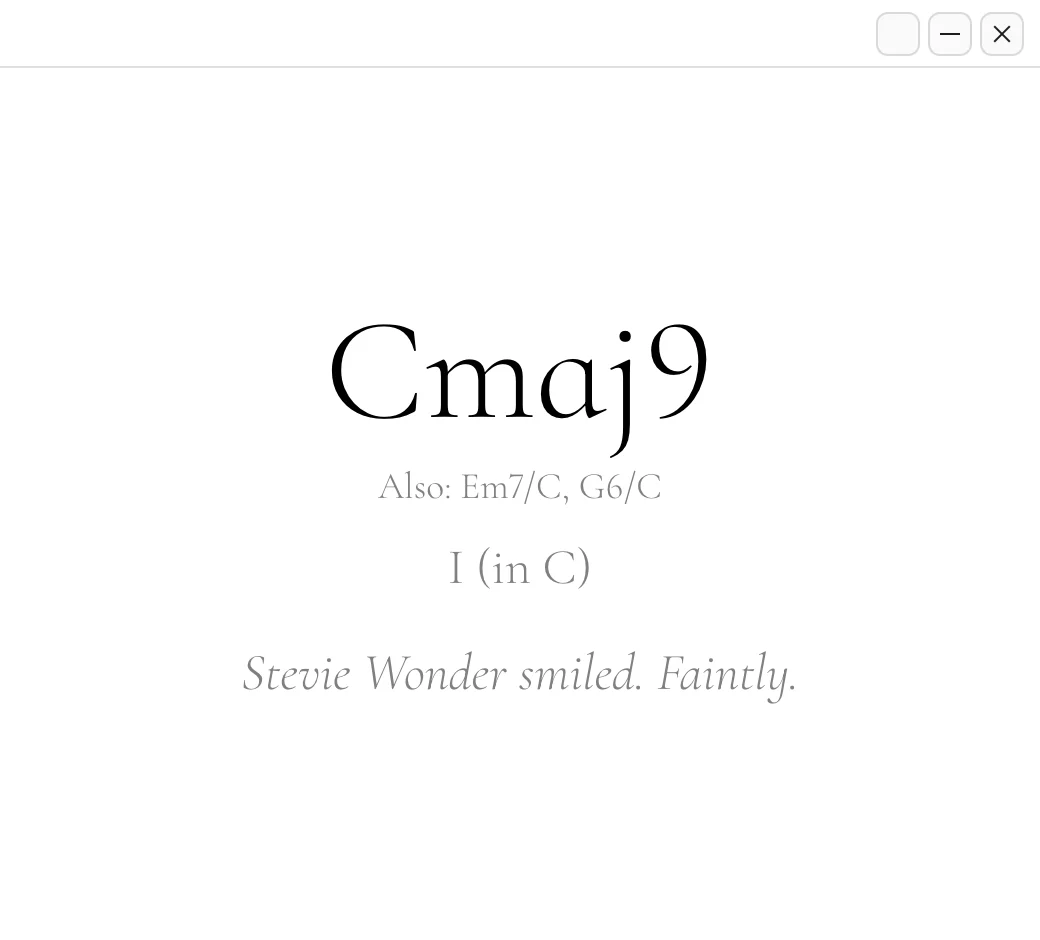
Three real windows, one setting. It flips live — no restart — and the accent colour you chose comes back when you switch it off.
Every panel is its own capture source.
No more sharing a whole desktop and hoping nothing pops up. Each window carries a fixed, distinct title, so a capture tool finds it and keeps it. Add the keyboard low, the chord name big, the staff wherever it fits — and leave the rest of the app off screen.
- Distinct, fixed window titles — nothing is called “Window 2”
- Six accent colours and six pressed-key colours, so the overlay can match your scene
- Black on white cuts cleanly with a luma key; a dark theme does not
- On macOS, a cropped display capture is the steadier route — see the FAQ, it is worth two minutes

MIDI devices, language, colours, naming style, enharmonic spelling, sound engine, latency — one window, no submenus.
Questions about capture
My capture source went black after I restarted Cadenza.
That is a capture-tool behaviour rather than a bug in the app: a window capture is bound to a window id, and quitting Cadenza destroys those ids. When it opens again the windows are new, so every source pointing at the old ones comes up empty and has to be re-picked.
The steadier setup on macOS is a display capture cropped to where you keep the windows — it survives restarts, and it is generally faster than window capture is on that platform. Save your arrangement as a layout preset so the windows come back to the same coordinates every time, and the crop keeps working.
And there is a way that sidesteps the whole problem: Cadenza has a built-in Browser Source server. Add the keyboard, the chord name or the staff as an OBS Browser Source once, and the overlay reconnects by itself whenever the app restarts — the source never goes black. Switch it on in Settings; the setup page hands you the links and the recommended sizes.
Play it once.
macOS 12 or later · Windows 10 and 11 · no account, no card
Also in Cadenza